Asked

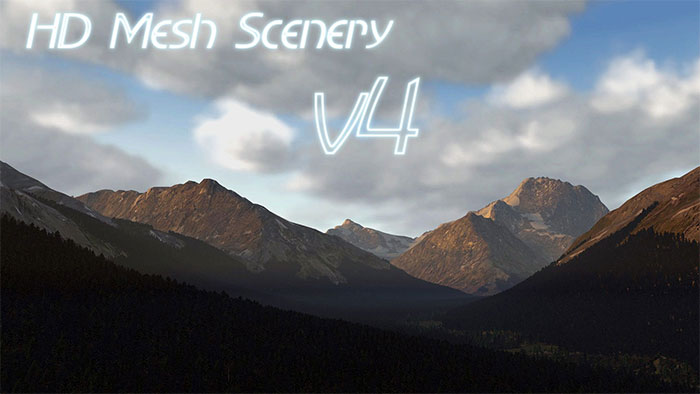
The official HD Mesh Scenery v4 for X-Plane 11 and 12 from AlpilotX is now available online via various platforms.

This fourth edition of the HD mesh scenery package adds a whopping amount of new detail to optimize visual quality across the board.

Developed just for X-Plane 11, this new mesh scenery will improve your visuals dramatically.

You can read the news release here (with many screenshots):
https://flyawaysimulation.com/news/4934/

You can download the packages here:
https://flyawaysimulation.com/downloads/137/x-plane-hd-mesh-scenery-v4/

Fly Away Simulation is an official release partner for this but you don't have to get the files from us of course. In fact, the best method of downloading these files is via BitTorrent which you can read more about on the official AlpilotX web page.

The total size of all the tiles is 117.5 GB and there are a total of 174 tiles.

Don't forget, the team behind AlpilotX have made these scenery files available free of charge to download and use. Third-party developers are greatly appreciated in the flight sim world because they make the community what it is. If you like the files, please consider a donation to AlpilotX.

Expert Answered

HD Mesh v4 install notes / common gotchas (XP11/XP12)

Nice to see v4 getting some love again. For anyone grabbing this and wondering how to actually get the benefit (or why they don’t see any change), here are the practical bits that usually trip people up.

1) What HD Mesh v4 actually does
It’s a mesh replacement (terrain shape + landclass detail). It won’t add custom buildings/landmarks by itself, and it won’t “stack” with other meshes for the same tile.

2) You only install the tiles you need
You don’t have to download the full 117GB. Just grab the tiles covering where you fly.

3) Folder placement
Each extracted tile folder goes in:
X-Plane 11\Custom Scenery\
(or your XP12 Custom Scenery folder if you’re testing there)

Don’t leave it nested like:
Custom Scenery\zzz_hd_global_scenery4\zzz_hd_global_scenery4\Earth nav data\...
It should be one level deep (the scenery folder itself sitting directly in Custom Scenery).

4) scenery_packs.ini ordering (this is the big one)
X-Plane loads from top to bottom. Meshes need to be below airports/cities/overlays so they don’t “flatten” or suppress them.

General rule of thumb:

  • Airports at/near the top (including custom airports)
  • Overlays (like forests/roads/OSM overlays)
  • HD Mesh v4 tiles down near the bottom
  • Any other mesh products also near bottom, but remember: only one mesh per tile “wins”

So your HD Mesh entries usually belong above “Global Scenery” entries if those exist, but below overlays and airports.

5) Don’t mix multiple meshes for the same area
If you already use something like Ortho scenery that includes its own mesh, whichever is lower in the .ini will take priority. If you’re expecting HD Mesh detail but your Ortho mesh is winning (or vice versa), you’ll get confusing results.

6) Quick way to confirm it’s loading
After a flight loads, open:
X-Plane 11\Log.txt
and search for the HD Mesh folder name. You should see X-Plane listing the scenery packs it found and loaded.

A couple quick questions so I can steer you correctly

  • Are you installing this into XP11 or XP12 right now?
  • What other scenery is in the same region (Ortho tiles, overlays, simHeaven, etc.)?
  • If you can paste the relevant section of your scenery_packs.ini (just the lines around the HD Mesh entries), I can tell you immediately if the order is the problem.

Still does not answer your question? Ask a new question!

If the question and answers provided above do not answer your specific question - why not ask a new question of your own? Our community and flight simulator experts will provided a dedicated and unique answer to your flight sim question. And, you don't even need to register to post your question!

Ask New Question...